
Download Project Viewer 365 – Secure Project Schedule Viewer for Windows, Mac, Android & iOS
Project Viewer 365 is a versatile, cloud‑enabled application that lets every member of a project team open, view, and lightly edit Microsoft Project (MPP) files without needing the full MS Project suite. Whether your plans live on Google Drive, OneDrive, Dropbox, Box, SharePoint Online, Basecamp, or even a direct URL, Project Viewer 365 connects, pulls the schedule, and presents it in an intuitive interface. The free version covers basic sorting, filtering, and zooming, while the premium tier adds advanced timescale customization, multi‑filter highlighting, and deep resource analysis. Ideal for contractors, PMOs, and remote teams, this tool bridges the gap between powerful scheduling and on‑the‑go accessibility, all while keeping your data secure and up‑to‑date.
Key Features That Make Project Viewer 365 Stand Out
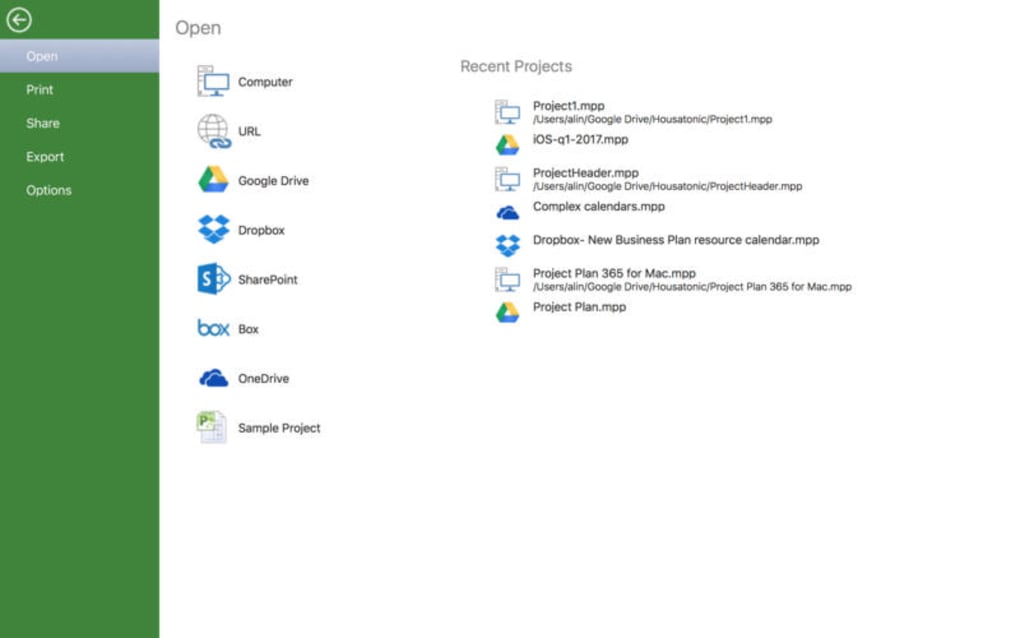
- Universal Cloud Access: Seamlessly open MPP files stored in Google Drive, OneDrive, Dropbox, Box, SharePoint Online, Basecamp, or via a direct URL link.
- Native MS Project Compatibility: Full support for the proprietary .mpp format ensures that the visual fidelity of your schedule remains intact.
- Basic Sorting & Filtering (Free Tier): Quickly sort tasks by start date, duration, or priority and apply simple filters such as Completed, Critical, or Milestones.
- Advanced Sorting & Custom Timescales (Premium): Set multiple concurrent filters, customize timescale intervals, and create visual cues for resource‑heavy tasks.
- Zoom & Pan Controls: Instantly zoom into a single day, week, or month, and pan across large Gantt charts without losing context.
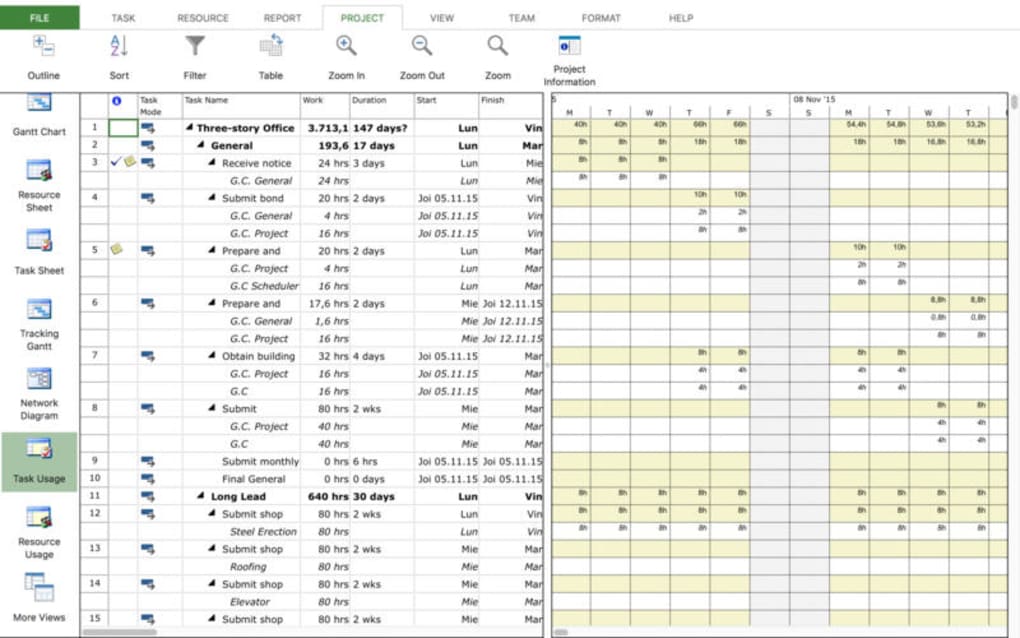
- Resource Highlighting: Identify tasks tied to specific resources, enabling project managers to spot overallocation at a glance.
- Secure Data Handling: All connections use SSL/TLS encryption; the app never stores files locally unless you explicitly export them.
- Cross‑Platform Sync: Changes made on a Windows desktop reflect instantly on Android, iOS, or macOS clients via cloud sync.
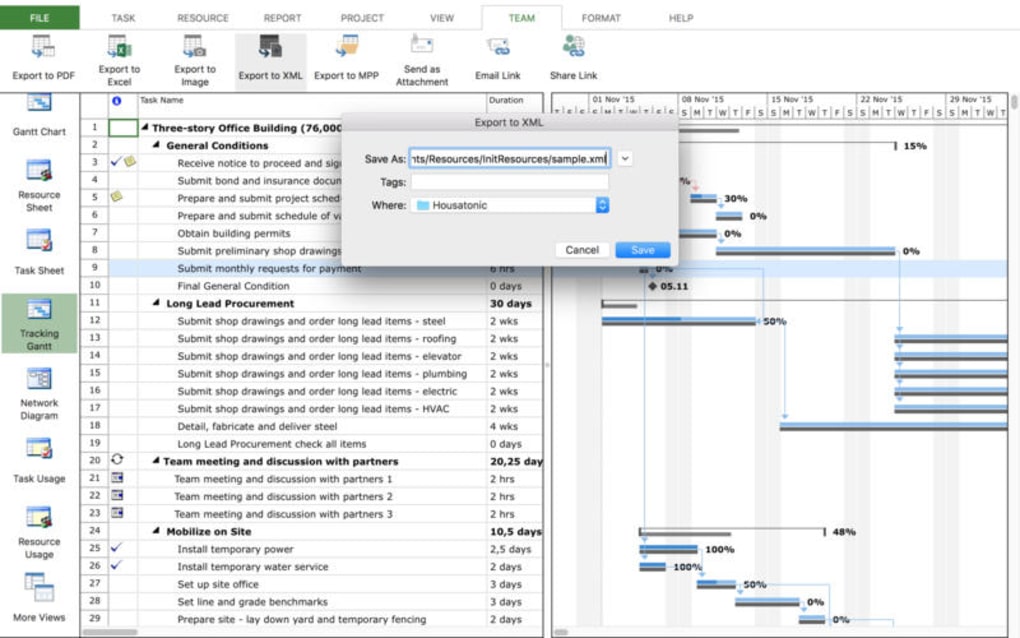
- Export Options: Export filtered views to PDF, PNG, or CSV for quick reporting or stakeholder distribution.
- Regular Updates: Automatic updates keep the viewer compatible with the latest Microsoft Project file specifications and cloud APIs.
Installation & Usage Guide – From Download to First Project
Getting Project Viewer 365 up and running is designed to be a frictionless experience, whether you’re on a corporate laptop or a personal tablet.
Step‑by‑Step Installation
- Download the Installer: Visit the official Project Viewer 365 website and click the Download button that matches your operating system – Windows (.exe), macOS (.dmg), Android (Google Play), or iOS (App Store).
- Run the Installer: On Windows, double‑click the .exe file and follow the wizard; macOS users drag the app to the Applications folder. Mobile platforms install automatically after the store download.
- Grant Permissions: The first launch prompts you to allow access to your chosen cloud services. Sign in using OAuth, which ensures your credentials never touch the app’s servers.
- Activate Your License: If you’ve purchased the premium plan, enter the license key provided in the confirmation email. The free tier works out‑of‑the‑box.
Opening a Project Schedule
Once installed, the home screen presents a clean “Add Project” button. Choose the cloud provider, navigate to the folder containing your .mpp file, and click Open. The viewer instantly parses the schedule, rendering a Gantt chart with task names, start/end dates, and dependencies. From there, you can:
- Apply a quick filter (e.g.,
Critical) via the toolbar. - Resize the timescale to days, weeks, or months using the zoom slider.
- Save custom filter sets for future sessions.
- Export the current view to PDF for stakeholder review.
Power users in the premium tier can access the “Advanced Filters” pane, where up to five filter conditions can be stacked. For example, you might highlight all tasks that are critical, assigned to John Doe, and have a remaining duration > 5 days. The app instantly colors those bars, making risk assessment a visual exercise rather than a spreadsheet drill‑down.
Pros, Cons, and Compatibility Overview
Pros
- Works with all major cloud storage providers, eliminating the need for manual file transfers.
- Full .mpp compatibility ensures no loss of data fidelity.
- Free tier provides essential viewing capabilities for occasional users.
- Premium features such as multi‑filter highlighting and custom timescales greatly enhance project analysis.
- Cross‑platform availability (Windows, macOS, Android, iOS) keeps teams aligned regardless of device.
- Strong security model with end‑to‑end encryption and no local file caching unless explicitly saved.
- Regular automatic updates keep the app current with Microsoft’s evolving file standards.
Cons
- Editing capabilities are limited to view‑only adjustments; full schedule editing still requires Microsoft Project.
- Advanced filtering can be overwhelming for beginners without a short learning curve.
- Premium subscription is annual, which may be a barrier for small teams on a tight budget.
- Resource‑heavy Gantt charts may cause slight lag on older mobile devices.
Compatibility (itemprop="operatingSystem")
- Windows 10, 11 (64‑bit)
- macOS 11 (Big Sur) and later
- Android 7.0 (Nougat) and newer
- iOS 13 and newer (iPadOS supported)
Frequently Asked Questions (FAQ)
Can Project Viewer 365 open older Microsoft Project files (e.g., Project 2003)?
Yes. The viewer supports .mpp files from Project 2000 onward, automatically converting legacy structures into the modern Gantt view.
Is there a limit to the size of a project file I can open?
The application can handle files up to 150 MB comfortably. Larger files may experience slower load times, especially on mobile devices.
Do I need an internet connection to view a project once it’s opened?
After the initial download from the cloud, the schedule is cached locally for offline viewing. However, any filter changes or exports will require a connection to sync back to the source.
How does the premium subscription pricing work?
The premium plan is offered as an annual subscription at $79 USD per user, which includes all advanced filters, custom timescales, and priority support.
Is my data safe when connecting to cloud storage services?
Project Viewer 365 uses industry‑standard SSL/TLS encryption for all data transfers. It never stores your credentials; authentication is handled directly by the cloud provider via OAuth.
Conclusion – Is Project Viewer 365 Right for Your Team?
Project Viewer 365 fills a critical niche for organizations that need to share and review detailed Microsoft Project schedules without the overhead of full‑blown Project licenses. Its cloud‑first architecture, robust .mpp compatibility, and cross‑platform presence make it a practical choice for distributed teams, consultants, and anyone who must stay in sync with a master schedule. While it does not replace the full editing suite, its free tier offers enough functionality for day‑to‑day status checks, and the premium upgrade unlocks powerful analytical tools that can dramatically improve risk visibility. If you’re looking for a secure, low‑maintenance way to let stakeholders view and lightly interact with project plans from any device, downloading Project Viewer 365 today is a smart move.
Download Project Viewer 365 now and experience seamless project schedule viewing across Windows, macOS, Android, and iOS.







